AI Split-Screen Videos for Product Demos
Create dynamic AI split-screen product demo videos for TikTok, Reels, and Shorts using Crealix AI's Split Videos feature.
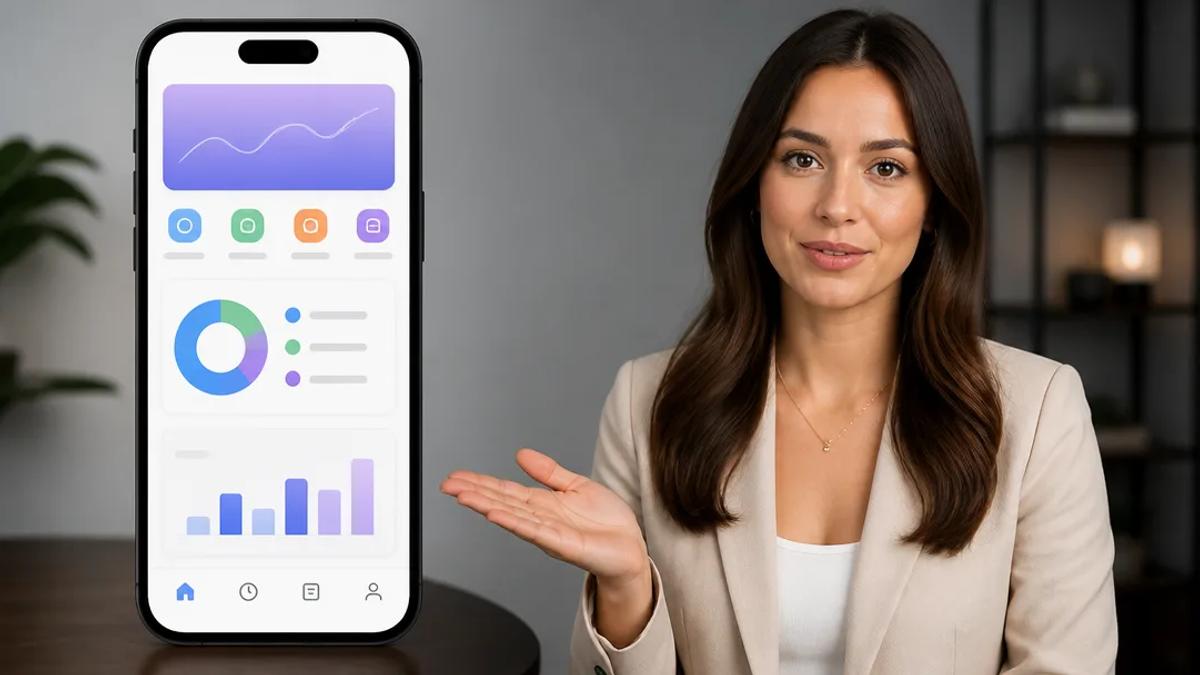
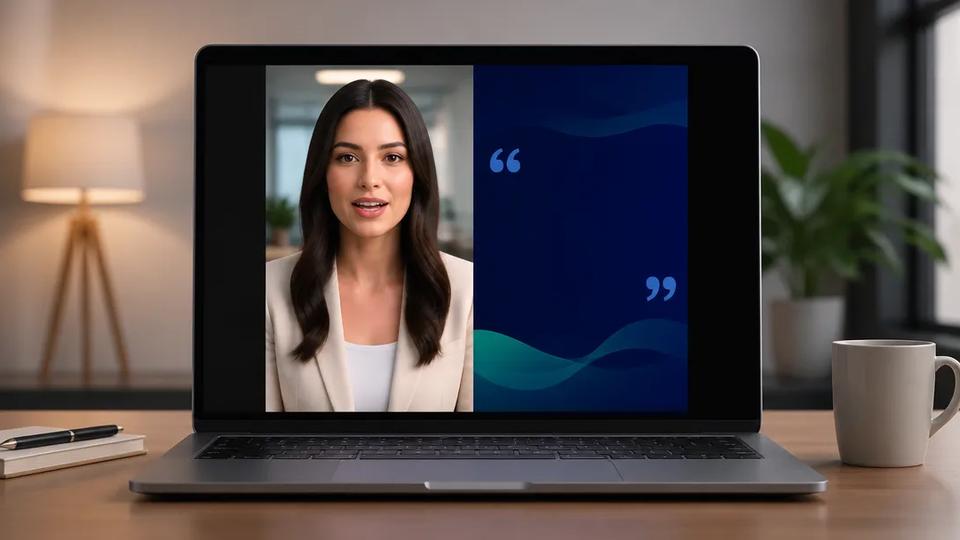
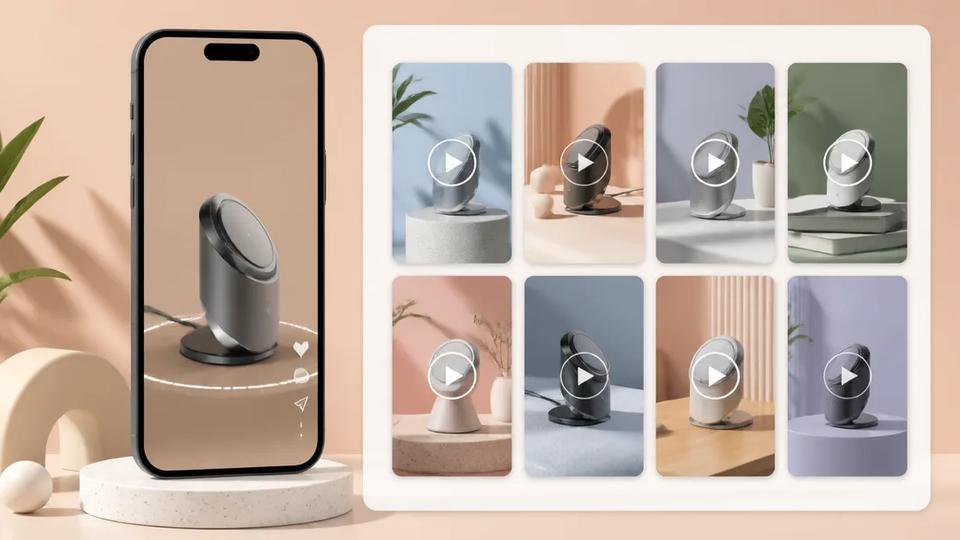
AI split-screen videos combine two video feeds side-by-side or top-and-bottom. This format effectively showcases products in action while simultaneously featuring a presenter, user interface, or reaction. For product demonstrations, it allows viewers to see multiple perspectives concurrently, enhancing engagement and clarity in short-form video marketing.
Why Use Split-Screen Videos for Product Demos?
Split-screen videos are a powerful tool for product demonstrations, conveying more information in less time and maintaining viewer engagement. Key advantages include:
- Simultaneous Perspective: Show product use in one panel and a user's reaction or feature close-up in the other. For software, display screen recording alongside user interaction.
- Enhanced Engagement: Dynamic concurrent visuals capture attention on platforms like TikTok, Instagram Reels, and YouTube Shorts.
- Direct Comparison: Highlight before-and-after scenarios or compare two product features side-by-side.
- Contextual Information: Provide context for product use, e.g., a cooking appliance alongside the finished dish, or app functionality with a presenter explaining benefits.
- Storytelling: Create a narrative by showing cause and effect, or problem and solution, within a single frame.
How to Make AI Split-Screen Product Demo Videos
Creating AI split-screen product demo videos involves selecting content, arranging the layout, and adding narrative elements. Tools like Crealix AI streamline this process, enabling compelling demos without complex editing skills.
1. Plan Your Content
Before video creation, determine content for each half of your split screen. For a product demo, consider:
- Product in Action: Footage highlighting functionality or benefits.
- User Interface (UI) Walkthrough: Screen recording of your software or app.
- Presenter/Explainer: An AI avatar or human explaining features.
- Reaction/Testimonial: A user's reaction to the product.
- Supplementary Visuals: Graphics, text overlays, or relevant clips.
For example, demonstrating a new mobile app could feature a screen recording of the app in use on one side, and an AI avatar explaining features or a user reacting to its ease of use on the other.
2. Generate or Source Your Video Clips
You need two video clips to combine. These can be:
- AI-Generated Videos: Create videos from scratch using AI tools like Crealix AI:
- Faceless Videos: Generate video with AI scenes and voiceover explaining product benefits. Learn more about Faceless Videos
- Talking Objects: Animate an object (e.g., product logo) to speak about features. Learn more about Talking Objects
- Stock Videos: Assemble real-footage videos based on a brief, ideal for showing product use. Learn more about Stock Videos
- AI Avatars: Generate a video of an AI avatar presenting your product. Learn more about AI Avatar Generator
- Pre-recorded Footage: Upload existing screen recordings, product footage, or user-generated content.
3. Combine Clips Using a Split-Screen Video Generator
Use a tool like Crealix AI's Split Videos feature:
- Select Clips: Choose two existing videos (Crealix-generated projects, AI avatar videos, AI video clips, curated gameplay, or uploaded footage).
- Choose Layout: Decide on top/bottom or side-by-side placement.
- Adjust Split: Drag the split line to adjust the ratio of each video.
- Add Narration (Optional): Crealix AI can automatically write and generate a voiceover, providing a cohesive narrative for your demo.
- Auto-Captions: Generate captions automatically from narration or audio for accessibility.
- Music & SFX: Add background music and sound effects.
- Spotlight Moments: Set "spotlight" moments where one video temporarily expands to full-frame, then returns to split-screen, highlighting critical details.
- Render & Share: Crealix AI renders the finished short-form video for TikTok, Reels, or Shorts.
Start creating your AI split-screen video now with Crealix AI.
Best Practices for Product Demo Split-Screen Videos
Maximize the impact of your AI split-screen product demos:
- Keep it Short: Aim for under 60 seconds, focusing on one or two key features.
- Clear Call to Action: Imply a next step, such as "Learn more in bio" or "Try it yourself."
- High-Quality Visuals: Ensure clear, well-lit, professionally presented video feeds. AI generators maintain visual consistency.
- Synchronize Content: If one panel shows an action, the other (e.g., presenter) should comment on it simultaneously.
- Optimal Split Ratio: Experiment with ratios; 50/50 or emphasizing one panel may be more effective.
- Engaging Audio: Clear voiceover, appropriate music, and relevant sound effects enhance the experience.
- A/B Test: Try different layouts, narrations, and visual combinations to identify what resonates with your audience.
Leverage AI tools like Crealix AI to efficiently produce high-quality, engaging split-screen product demo videos that stand out on social media and effectively showcase your offerings.