Troubleshoot Automated AI Video Series (Crealix Autopilot)
When your Crealix Autopilot series encounters issues like depleted credits, disconnected accounts, or production failures, it automatically pauses. Learn how Crealix handles these errors and the steps to quickly resolve them.
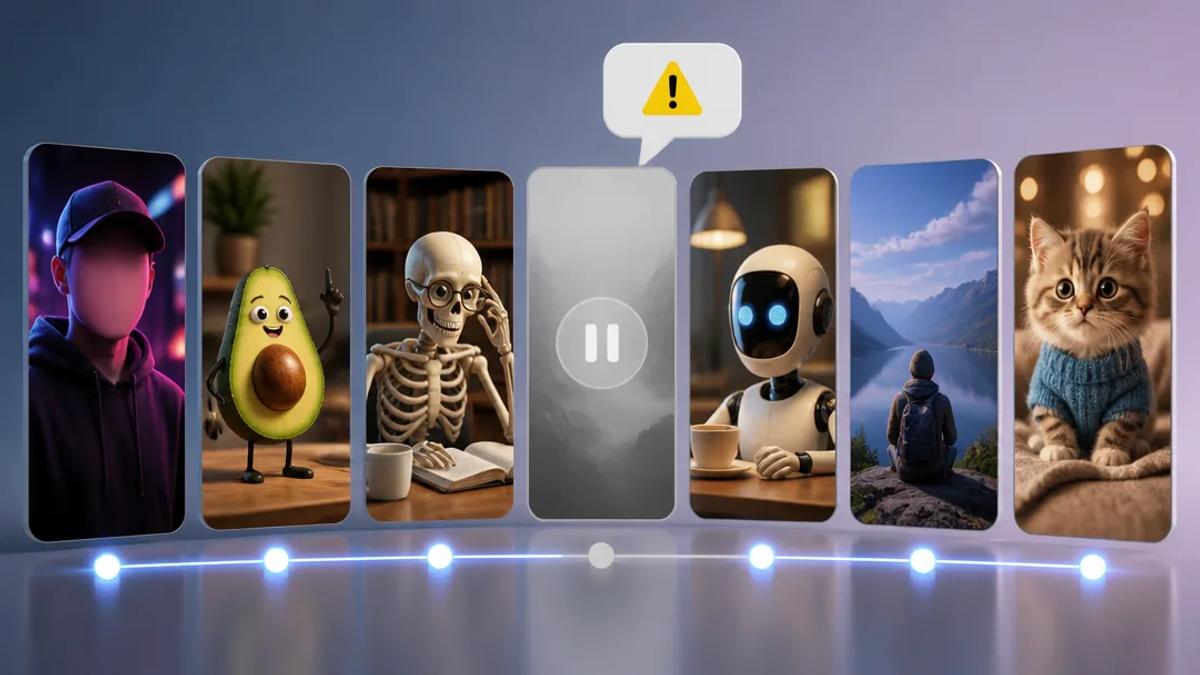
Running an automated AI video series with Crealix Autopilot scales content creation efficiently. However, understanding how the system handles common issues like depleted credits, disconnected social media accounts, or production failures is crucial. Crealix Autopilot features built-in safeguards to prevent silent failures and maintain user control.
This guide details Crealix Autopilot's error handling for credit depletion, account disconnections, and production failures, providing actionable steps to resolve them and ensure continuous series operation.
Crealix Autopilot: What Happens When Credits Run Out?
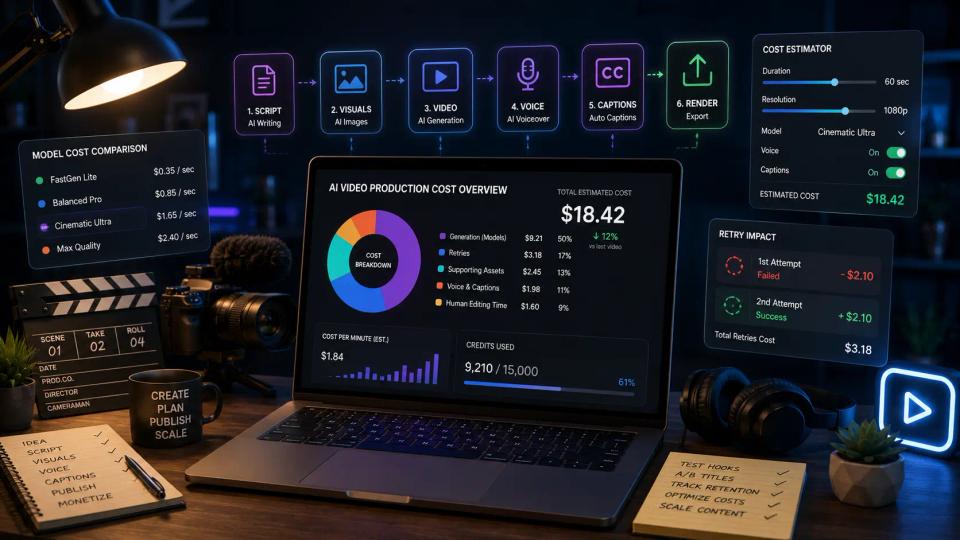
If your Crealix account runs out of credits while an Autopilot series is active, the series will automatically pause. Crealix prevents unexpected charges. You will receive an email notification confirming the series pause due to insufficient credits.
To fix it:
- Check credit balance: Log into your Crealix account to view your current credit balance.
- Top up credits or upgrade plan: Purchase additional credits or upgrade your subscription plan for a higher credit allowance. Find plan details at Crealix Pricing.
- Resume series: After replenishing credits, navigate to your Autopilot series dashboard. Select the option to resume the paused series. Crealix will then continue producing the next scheduled episode.
Crealix Autopilot: What Happens If a Connected Social Media Account Disconnects?
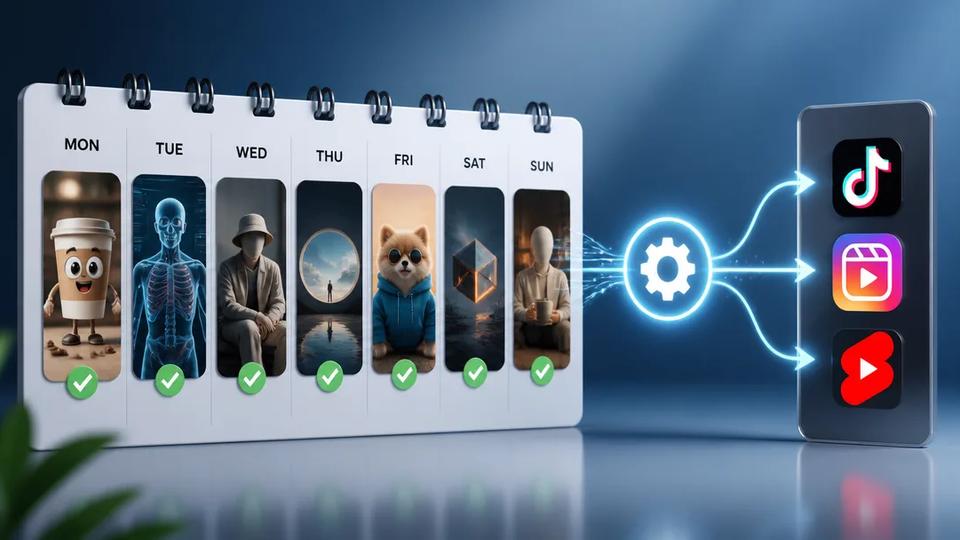
Crealix Autopilot supports direct publishing to TikTok, Instagram, and YouTube. If a connected account disconnects (e.g., due to a password change, revoked permissions, or platform issue), your Autopilot series will pause to prevent publishing failures. An email notification will inform you of the disconnection.
To fix it:
- Reconnect account: Go to your Crealix account settings, specifically the 'Connected Apps' section. Re-authenticate or reconnect the disconnected social media account.
- Verify permissions: Ensure Crealix has necessary publishing permissions. Reconnecting may require re-granting these permissions.
- Resume series: Once the account is reconnected, return to your Autopilot series dashboard and resume the series. Publishing will then proceed as scheduled.
Crealix Autopilot: What Happens If Three Productions Fail in a Row?
While Crealix's AI generation is highly reliable, occasional production failures can occur from complex prompts or temporary system issues. If an Autopilot series experiences three consecutive production failures, it automatically pauses as a safety measure. This prevents repeated failures and allows for review and adjustment.
You will receive an email notification detailing the production failures and the series' paused status.
To fix it:
- Review recent episodes: Check your Autopilot series history for failed episodes. Examine the creative brief or specific instructions that may have caused failures.
- Adjust creative brief or sources: If failures relate to content or style, modify the series' creative brief, variety pools (voices, music, visual styles), or source material. Simplify complex prompts or refine visual styles. Learn more about series setup at Crealix Autopilot.
- Produce an episode manually (optional): Test the issue outside the series context by manually producing an upcoming idea using the standard video creation flow. Create a video at Crealix Videos.
- Resume series: After making adjustments, resume the Autopilot series from its dashboard. Crealix will then attempt to produce the next episode in the queue.
How Crealix Autopilot Ensures Control
Crealix Autopilot integrates features for a transparent and smooth automated workflow:
- Approval by default: Every Autopilot-produced episode requires your approval before rendering and credit deduction. Review previews, make tweaks, and only pay for approved content.
- Clear queue visibility: The upcoming queue of planned ideas is visible on a calendar. Edit, reorder, pin to a specific date, skip, or immediately produce any idea.
- Email notifications: Receive timely email alerts for paused series, credit issues, and account disconnections, ensuring you stay informed.
- No silent failures: The system pauses rather than failing silently, enabling proactive issue resolution.
Automating short-form video production with Crealix Autopilot allows content scaling without constant oversight. Built-in troubleshooting and notification systems provide clear steps to get your series back on track when unexpected issues arise.
Ready for automated video creation with peace of mind? Start your free series with Crealix Autopilot today.